
Multiple graphs
LEarn how to create seperate graphs
The Main Graph
The Main Graph holds everything Graphify has synced. It's always there, it needs no setup, and it can't be deleted. When you want the whole picture, that's it.
Custom Graphs
A Custom Graph is a named selection. A node belongs to it if:
- its database is one you selected, or
- you picked that page individually.
So you can take "everything in the Projects database" and add three loose reference pages that don't live in any database.
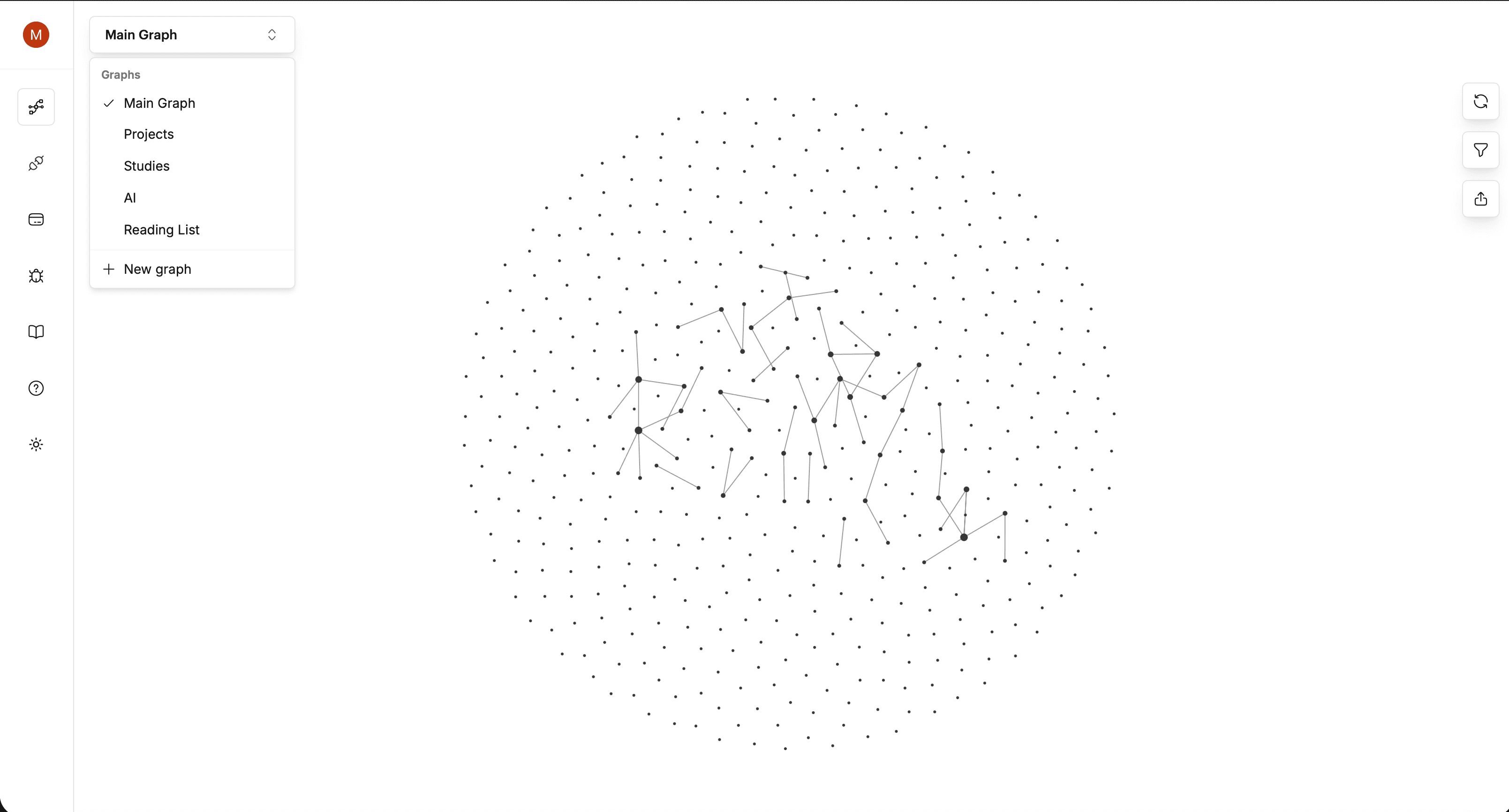
Creating one
On desktop, use the switcher in the top left (New graph) or go under Settings and My Graphs.
On the web, create one from the graph switcher.
Then pick databases, add any individual pages, and give it a name.
Switching
Use the switcher, or the command palette on desktop. Graphify remembers which graph you were last in.
What comes with each graph
Each graph carries its own filters and its own node groups. Switching to your Client work graph brings back that graph's colours and hidden databases without you touching anything.
A view, not a copy: Custom Graphs don't duplicate data and don't change Notion. Deleting one removes the selection, never the pages.
Publishing a specific graph
You can publish the Main Graph or any Custom Graph. Publishing a Custom Graph is how you share one project without exposing the rest of your workspace. Visitors only ever get the nodes in that graph.
See Publish a graph.
Still stuck? Tell us what you were doing when it went wrong.
hello@getgraphify.com