
Filters
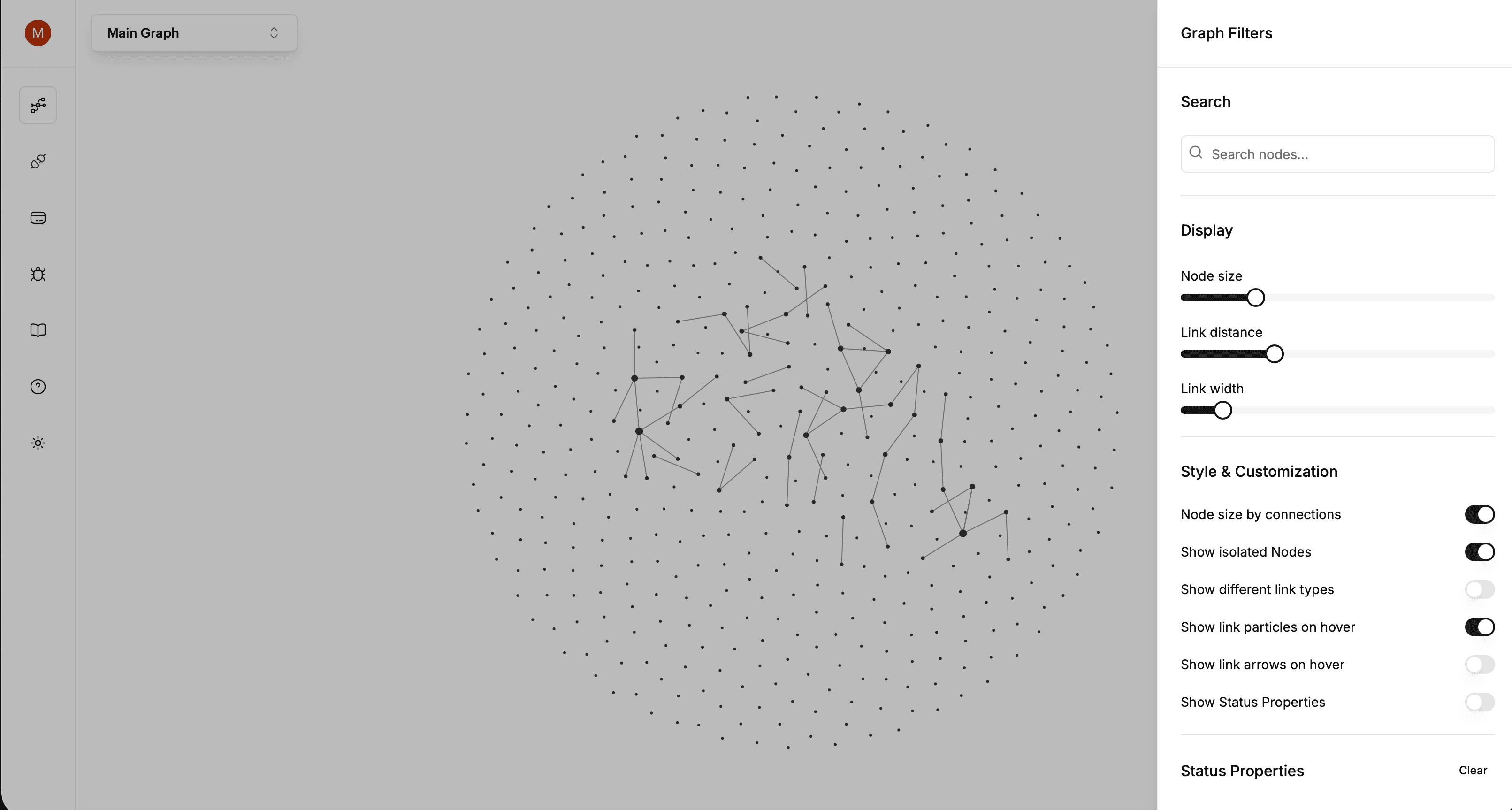
Decide what shows up on the canvas and how that differs from changing how it looks.
Filter or appearance?
Two different panels, and mixing them up is the most common confusion:
- Filter answers which nodes and links are on the canvas at all.
- Appearance answers sizes, distances, colours.
Pro: On the web, advanced filters are part of Pro. On Graphify Desktop they're included.
What you can filter by
Search
Type part of a page title. Matching nodes and their connections are highlighted.
Search resets each time you start the app. Every other filter stays where you left it.
Isolated nodes
Turn these off to hide every node with no connections.
Link types
Show or hide mention, relation and link to page independently, and recolour them if the defaults don't suit you.
mentionYou typed @ and picked a page.relationTwo database entries are linked by a relation property.link to pageYou used Link to page, or pasted a link to a page.Databases
Hide whole Notion databases. Useful when one big database, like meeting notes, say drowns out everything else.
Status
Filter by the values of your Notion status properties.
Minimum connections
Hide anything with fewer connections than you set. Raise it and the hubs of your workspace are what's left.
Node groups
Colour, hide or isolate a named set of nodes. That has its own page, see Node groups.
A section you can't find: The panel only shows sections that have something to offer. No Status section means none of your synced pages has a status property yet.
Filters and graphs
Filter settings are remembered per graph. Switching to another Custom Graph brings that graph's own filters with it, so you're not constantly resetting things.
Next
Still stuck? Tell us what you were doing when it went wrong.
hello@getgraphify.com