
Find your way around
Moving, selecting, zooming, and jumping from the graph into Notion.
Moving the canvas
Drag empty space to pan. Scroll to zoom. Drag a node to pull it around. The rest of the graph settles around it.
Selecting a node
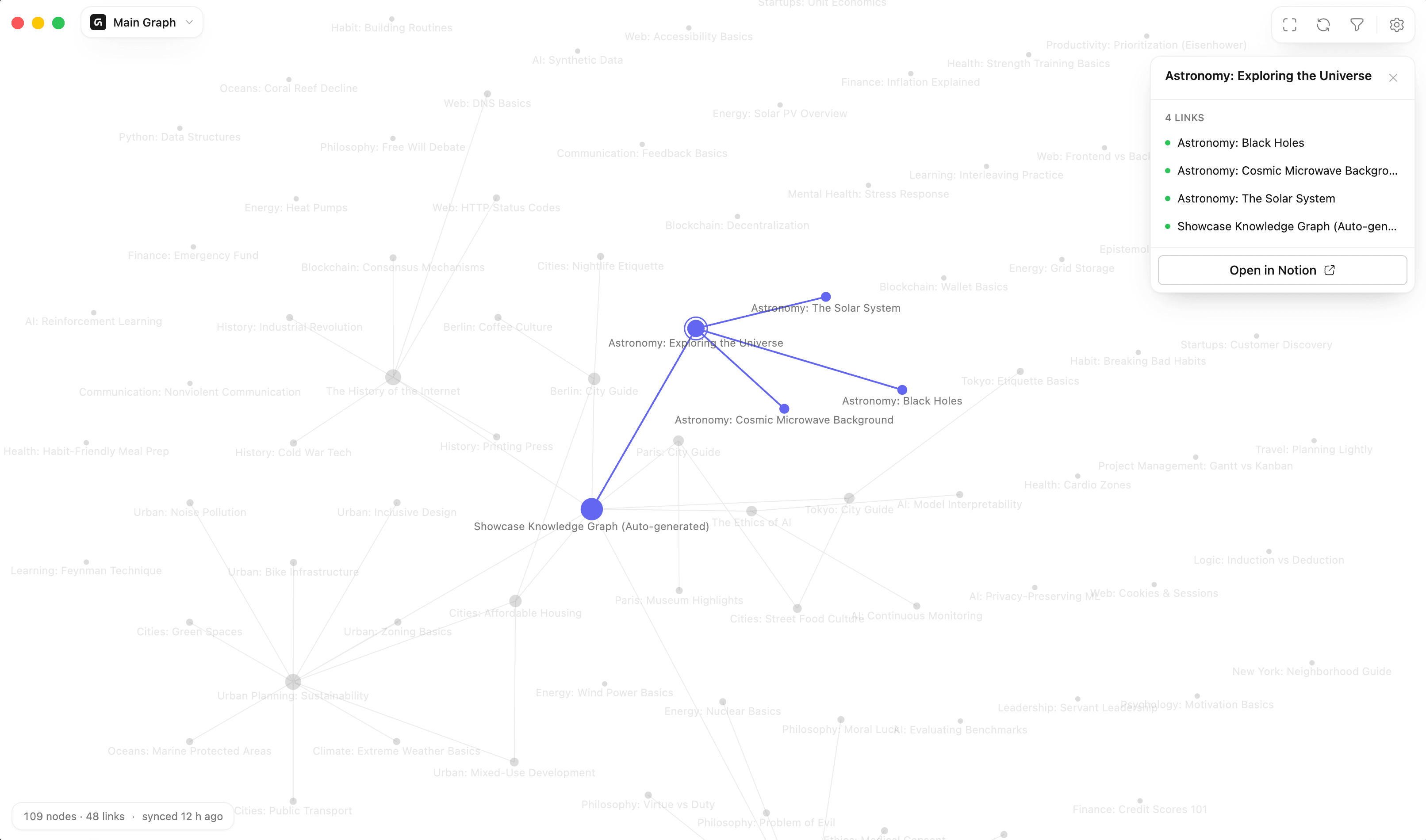
Click a node to select it. Graphify highlights it and everything it's connected to, and opens a panel with its title and its neighbours grouped by link type.
From that panel you can jump to a neighbour, which selects that node in turn. That's the fastest way to walk a chain of related pages.
Press Esc to clear the selection.
Opening the page in Notion
On the web, click a node to open its Notion page.
On desktop, double-click the node, or use the button in the detail panel.
Shared graphs behave differently: When you publish a graph you can decide whether viewers may click through to Notion at all. See Publish a graph.
Search
Search for a page title and Graphify highlights the matches and their connections. It's the quickest way to answer "where does this thing sit?"
The command palette (desktop)
⌘K on macOS, Ctrl+K on Windows, opens Search & commands. From there you can find a node, switch graphs, start a sync, and open the filters or settings. It's the shortest path to anything in the app.
Focus mode (desktop)
Press F to hide everything around the canvas. Press it again to bring the interface back. Good for a second screen, or a screenshot.
Keyboard shortcuts (desktop)
| macOS | Windows | What it does |
|---|---|---|
| ⌘K | Ctrl+K | Search & commands |
| ⌘, | Ctrl+, | Settings |
| ⇧⌘R | Shift+Ctrl+R | Sync |
| 0 | 0 | Zoom to fit |
| F | F | Focus mode |
| Esc | Esc | Clear selection |
The status line (desktop)
Along the bottom you'll find how many nodes and links are on screen, whether a filter is currently hiding anything, and when the last sync finished.
If nodes seem to be missing, check there first — it will tell you if the view is filtered.
Still stuck? Tell us what you were doing when it went wrong.
hello@getgraphify.com