
Appearance
Change Sizes, distances and colours of the graph
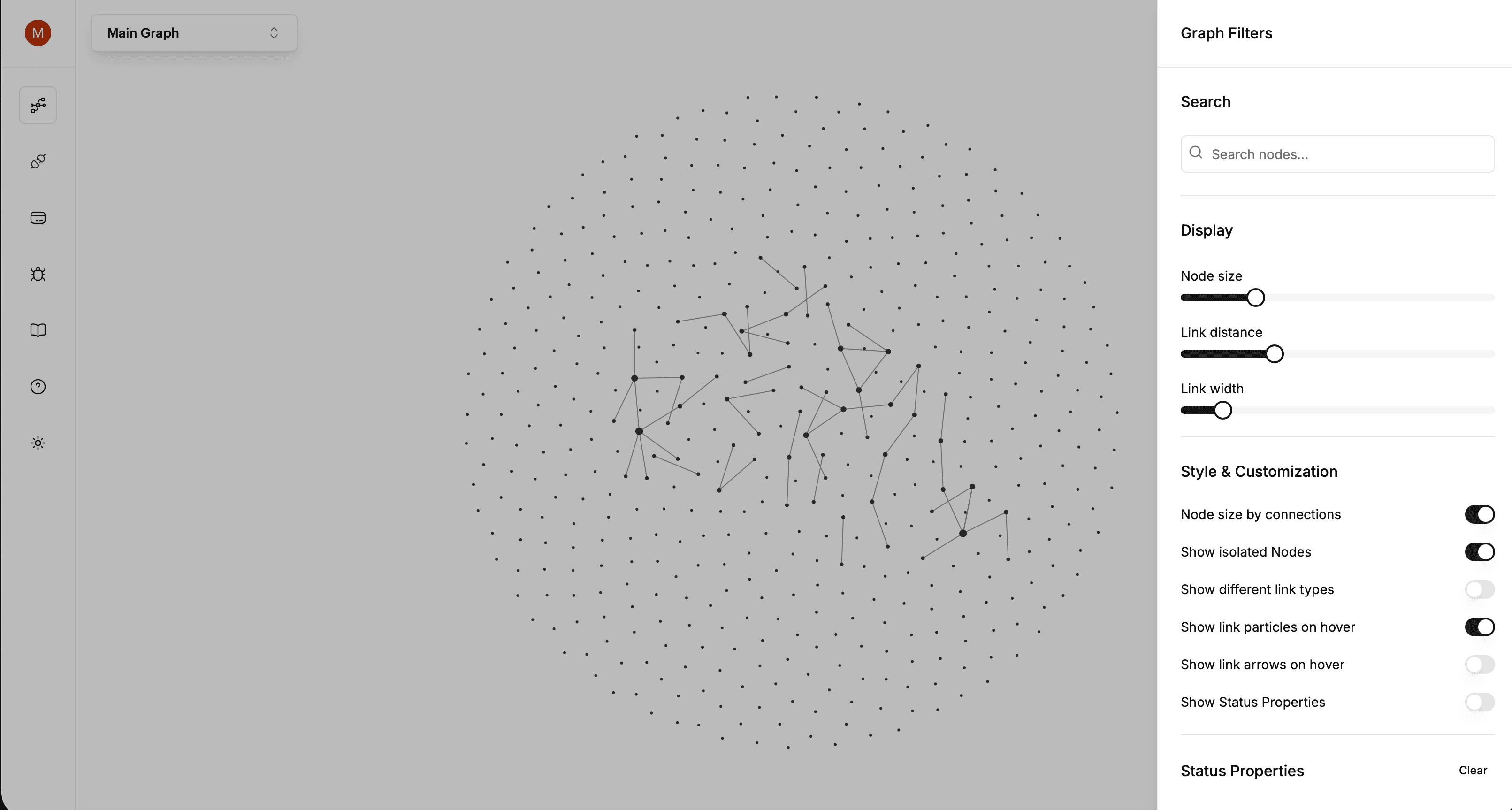
What you can change
| Setting | What it does |
|---|---|
| Node size | How big the dots are |
| Size by connections | Well-connected pages get drawn larger |
| Link distance | How far apart the graph spreads |
| Link thickness | How heavy the lines are |
| Colour by status | Colours nodes by their Notion status property |
| Particles on hover | Dots travel along a link to show its direction |
| Arrows on hover | Arrowheads instead of particles |
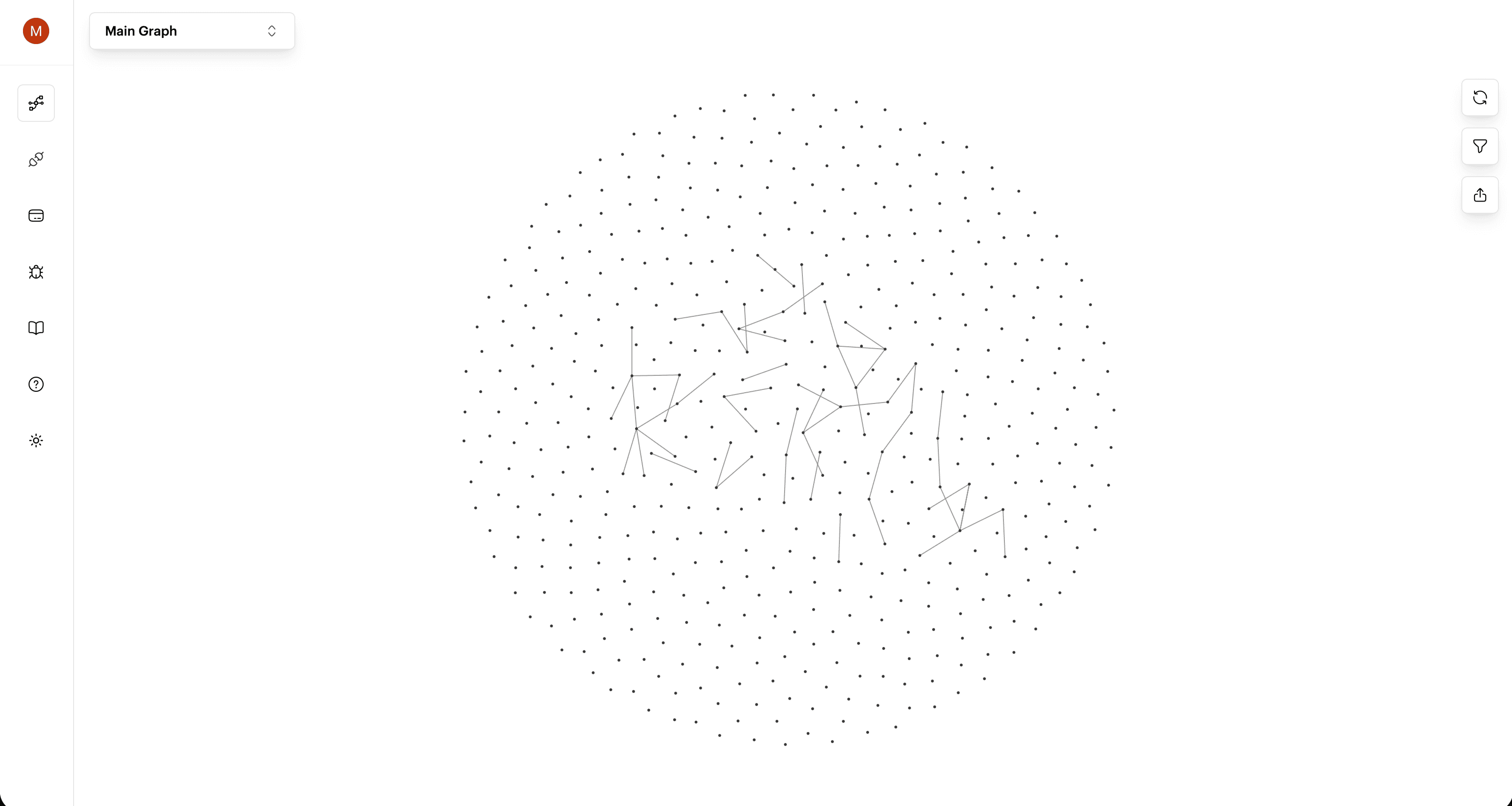
Size by connections makes the biggest difference:
Where to find it
On desktop, it's Settings → Appearance, which also holds the theme (Light, Dark or System) and a Reset to defaults button if you've painted yourself into a corner.
On the web, visual settings sit with the graph controls.
Pro: Visual customization is a Pro feature on the web. It's included in Graphify Desktop.
Settings travel with a shared graph
When you publish a graph, the way it looks at that moment is what visitors see.
The content keeps following your Custom Graph afterwards, but the styling is captured when you create the link. Restyle and republish if you want the look to change.
Still stuck? Tell us what you were doing when it went wrong.
hello@getgraphify.com