
Connect Notion — web app
Link your Notion workspace to Graphify in the browser, and choose what it can see.
This is for Graphify on the web. Using the desktop app? See Connect Notion — desktop app.
Prefer to read? The same steps are written out below.
Connect with the official integration
This is the quickest route and the one we recommend. Graphify is a listed Notion integration, so the whole thing happens on Notion's own screen.
Open Graphify and click Connect Notion
It's on the welcome screen, and later in Connections.
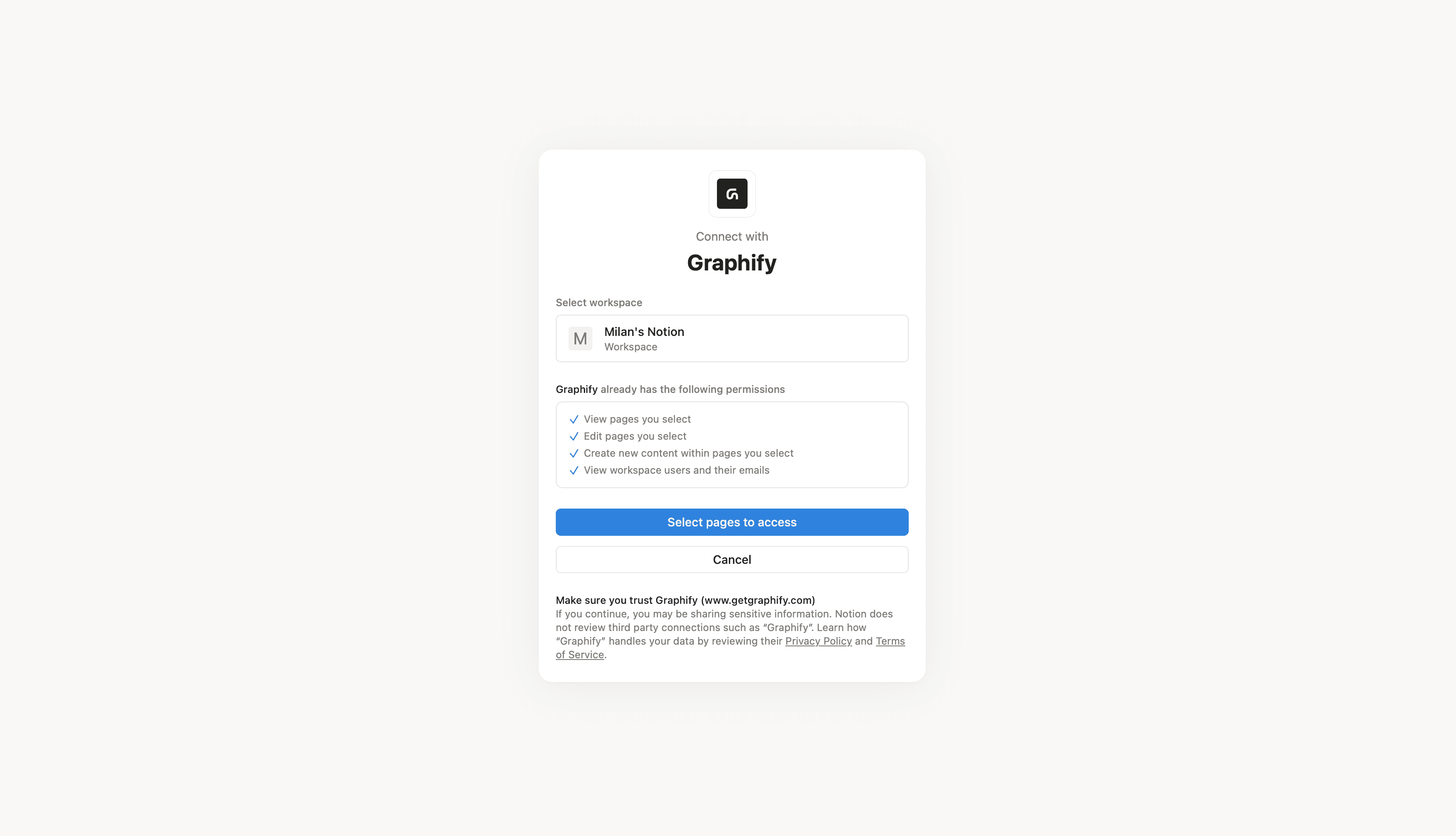
Pick your workspace
Notion shows its own authorization window. If you belong to more than one workspace, choose the one you want to map.
Choose the pages Graphify can see
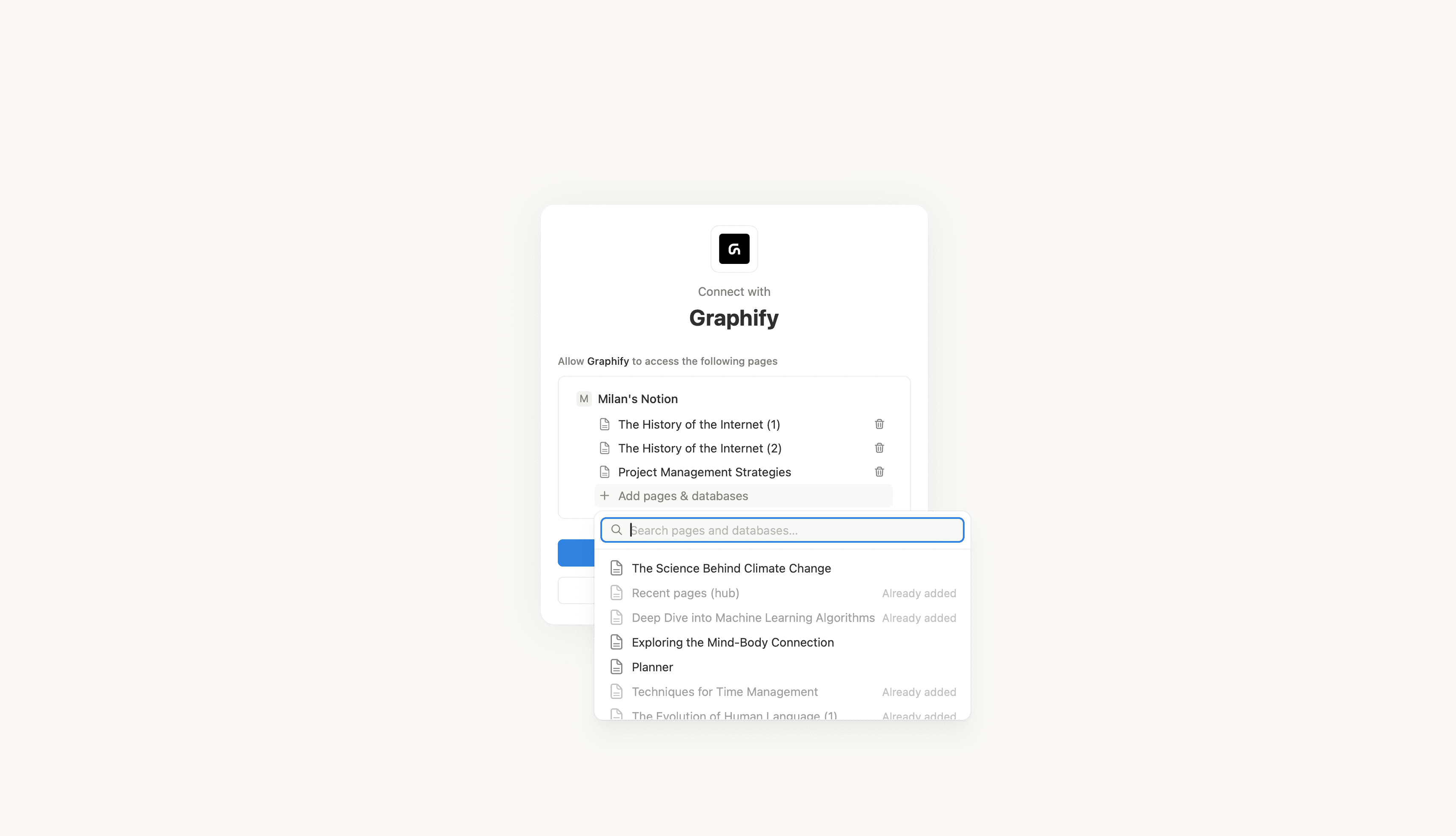
Select pages and databases, then click Allow access. Pick a top-level page and everything inside it comes along.
Wait for the first sync
Notion sends you back to Graphify and the first sync starts on its own.
Large workspaces take a while: Notion limits how fast anything can read from it, so the first sync of a big workspace can run for a long time. Later syncs are much shorter. You can leave the tab and come back.
What Graphify can see
Only the pages you shared. Nothing else in the workspace is reachable, even by accident.
For each page it stores the title, the properties it needs to draw links and run filters, which database the page belongs to, and when it was last edited. It doesn't store the body of your pages.
Access is read-only, always.
Change what's shared later
You can widen or narrow the selection whenever you like, from Notion's side:
- Open the page in Notion.
- Click ••• in the top right.
- Under Connections, add or remove Graphify.
Then sync in Graphify to pick up the change. More on that in Add or remove pages.
Next
Still stuck? Tell us what you were doing when it went wrong.
hello@getgraphify.com