
Connect Notion — desktop app
Creating an Access Token and giving acces to the pages you want to share.
Graphify Desktop talks to Notion directly from your machine. There's no Graphify server in between, so you create the connection yourself with a token. It takes about two minutes.
Prefer to read? The same steps are written out below.
Two steps, and people forget the second one: Creating the token gets you connected. Sharing pages with the integration is what actually gives Graphify something to draw. Do both.
Create a token
The full walkthrough with every screen is on Create a Notion token. The short version:
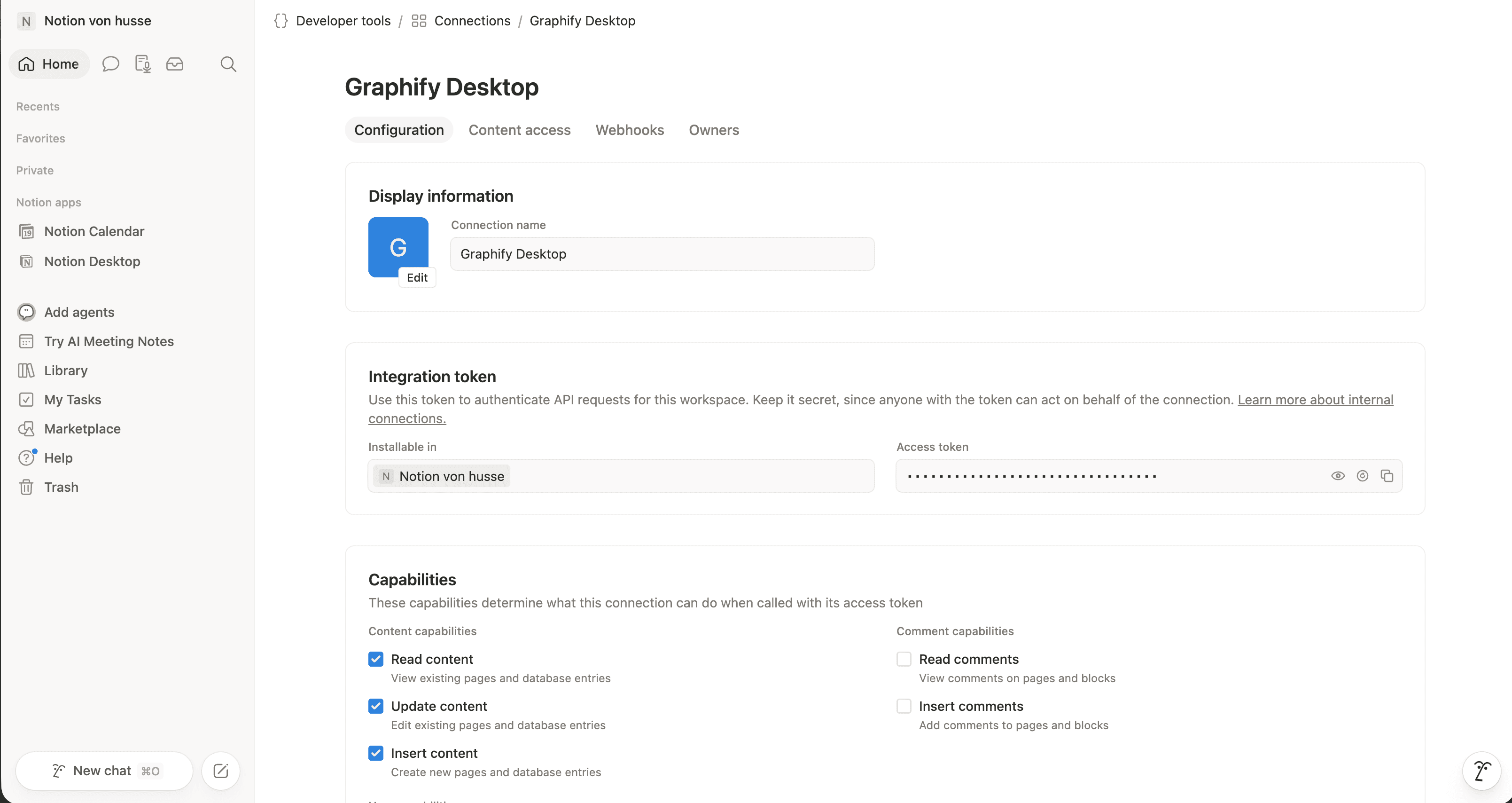
Go to notion.so/my-integrations
Follow the link on Graphify Desktop. In the Connectiosn view in Notion click on Create a new Connection and give it a name. Leave the type as Access Token.
Copy the Access Token
It starts with ntn_. Older tokens start with secret_ and work just as
well.
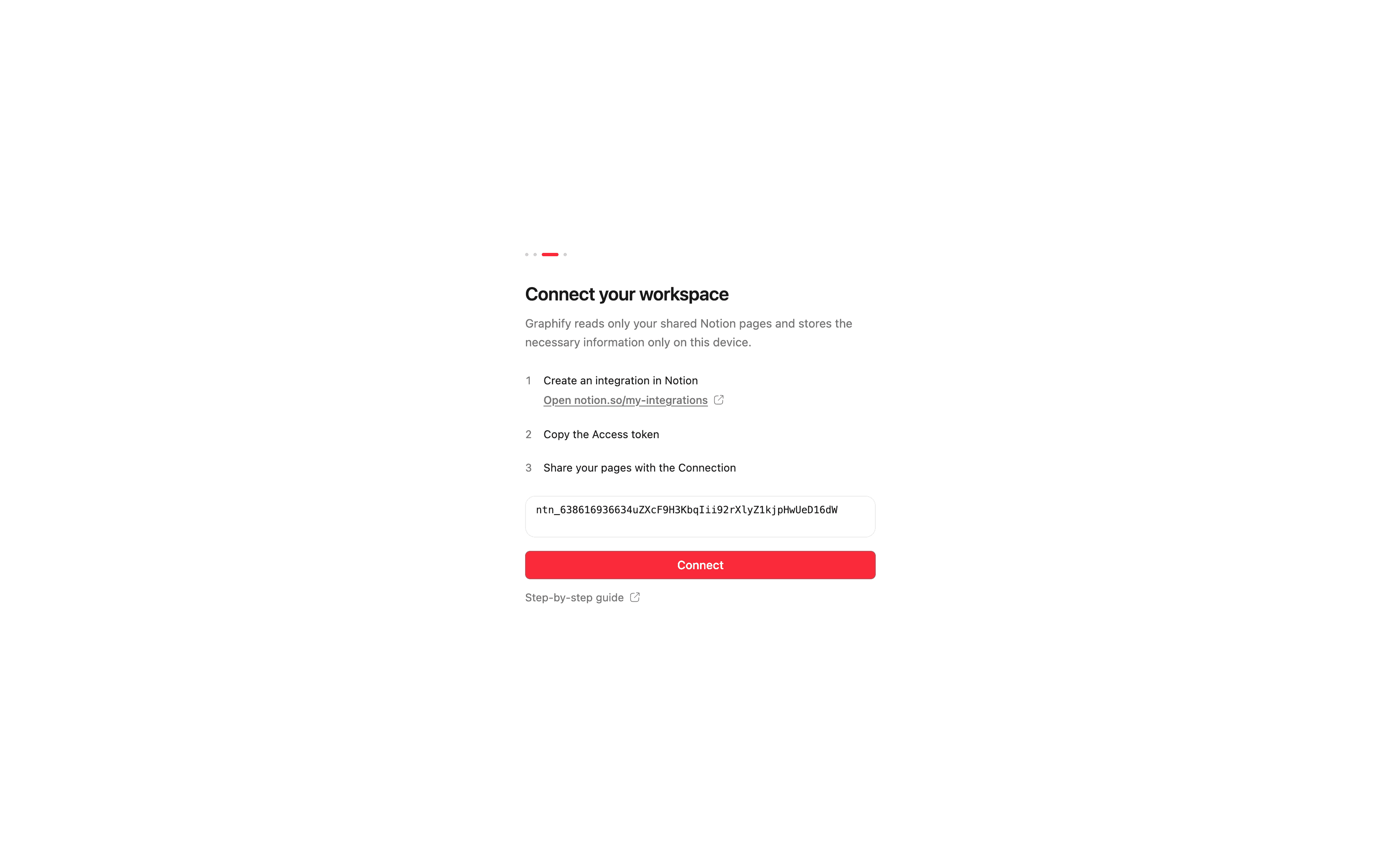
Paste it into Graphify and click Connect
If the token is already on your clipboard, Graphify offers it to you.
Share your pages with the integration
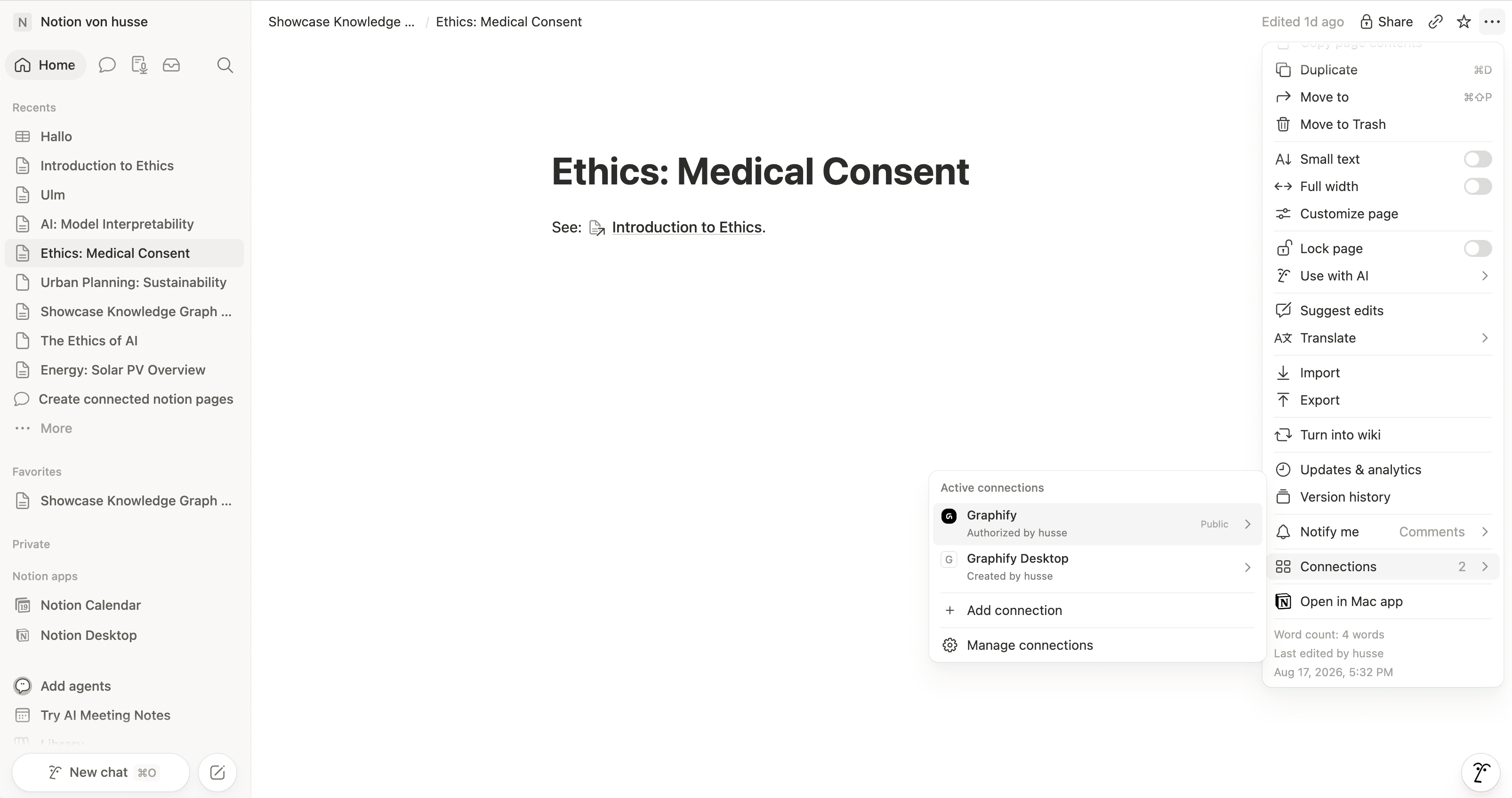
A fresh integration can't see anything until you let it. In Notion:
- Open the top-level page you want mapped.
- Click ••• in the top right.
- Choose Connections, then pick your integration.
Subpages come along automatically. One top-level page usually covers a whole area of your workspace.
No pages shared yet
If Graphify says No pages shared yet, the token is fine. This means Notion just hasn't been told to share anything with it.
That message is not an error in the token, so re-pasting it won't help. Go back to Notion and do the ••• → Connections step above, then sync again.
This is the single most common thing people get stuck on.
What you should see
Once connected, Graphify checks the connection on its own and shows two numbers: Pages and Databases. Those are what your token can reach.
If both are zero, nothing is shared yet. If they look far too low, you've probably shared one small page instead of a top-level one.
After a successful connection the first sync starts by itself. You don't have to press anything.
Next
Still stuck? Tell us what you were doing when it went wrong.
hello@getgraphify.com