
Add or remove pages
Bring new parts of your workspace into the graph, and take parts back out.
What Graphify can see is decided in Notion, not in Graphify. This page is how you change it.
Add a page
Open the page in Notion
Pick the highest page in the branch you want. Everything under it comes along.
Click ••• in the top right
Choose Connections, then Graphify
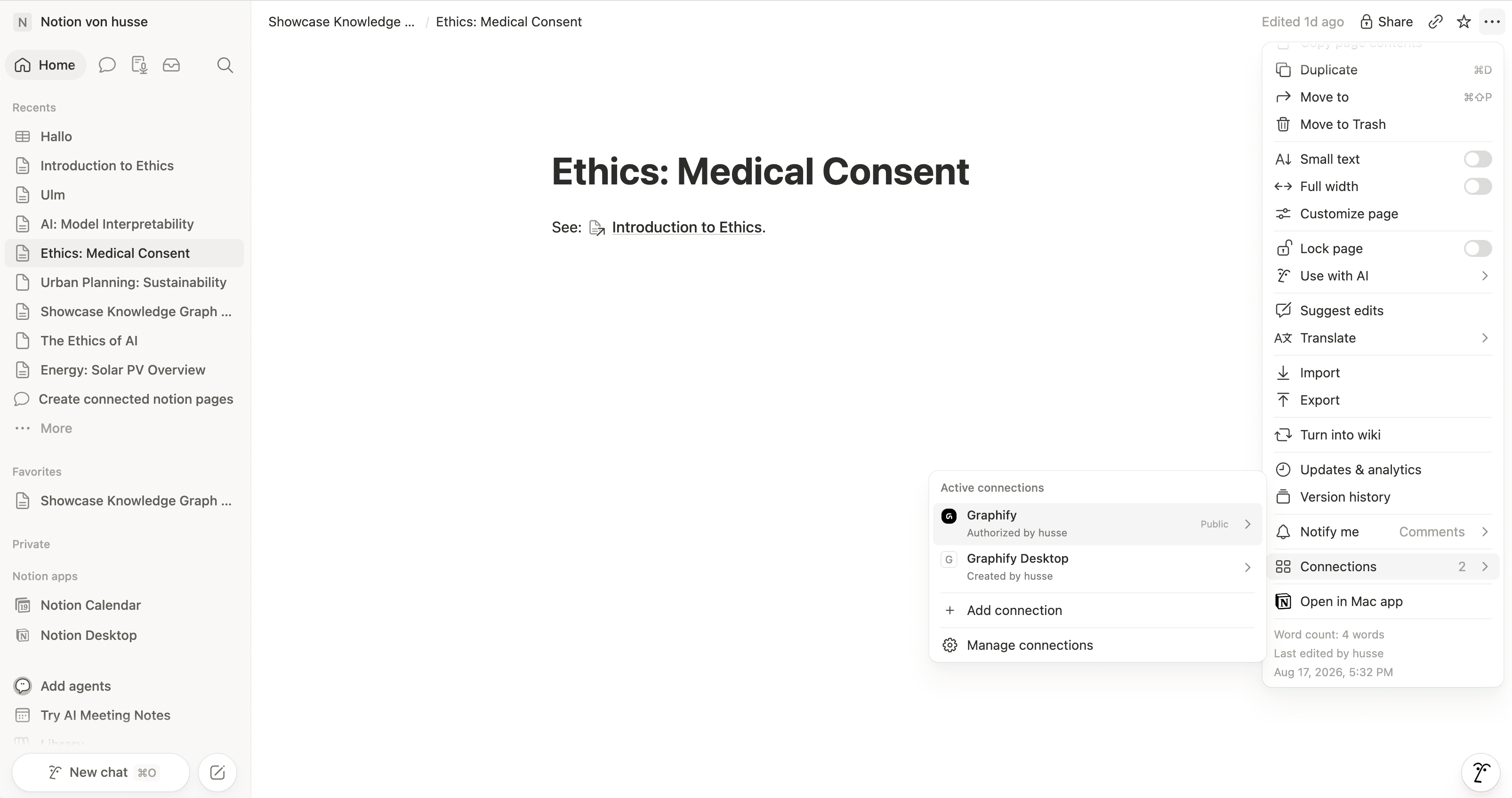
Sync
On the web this usually happens on its own. On desktop, press sync or wait for the next scheduled one.
You rarely have to do this per page: Subpages of a connected page are included automatically, and so are entries created in a connected database. Connect the parent once and new work appears by itself.
Remove a page
Same menu, in reverse: ••• → Connections → remove Graphify. At the next sync those nodes leave the graph.
The pages themselves are untouched. Removing a connection changes what Graphify may read, nothing else.
Which pages can appear
Almost anything with a title and some content:
- Standard pages
- Pages nested inside other pages
- Entries in a Notion database
- Pages linked with
@,/link to pageor a database relation
Which pages won't
| Page | Why | What to do |
|---|---|---|
| Completely empty pages | Notion returns no title for a page with no content at all | Add a title and any block |
| Pages not shared with the integration | Graphify can't see them | ••• → Connections |
Very deeply nested content
Graphify follows nested blocks to a limited depth. A link buried many levels down inside toggles and columns can be missed. Moving it nearer the top of the page brings it back.
Free plan page limit
On the web's Free plan Graphify syncs up to 100 pages.
Graphify Desktop has no page limit from our site.
Still stuck? Tell us what you were doing when it went wrong.
hello@getgraphify.com