
Create a Notion token
Make an internal Notion integration, copy its token, and share your pages with it.
After this page Graphify Desktop can read your workspace.
Graphify Desktop connects to Notion directly from your machine, so it uses a token you create yourself. No prior setup or Notion knowledge is needed and this takes about just two minutes.
Create the integration
Open notion.so/my-integrations
Sign in with the same Notion account as the workspace you want to map.
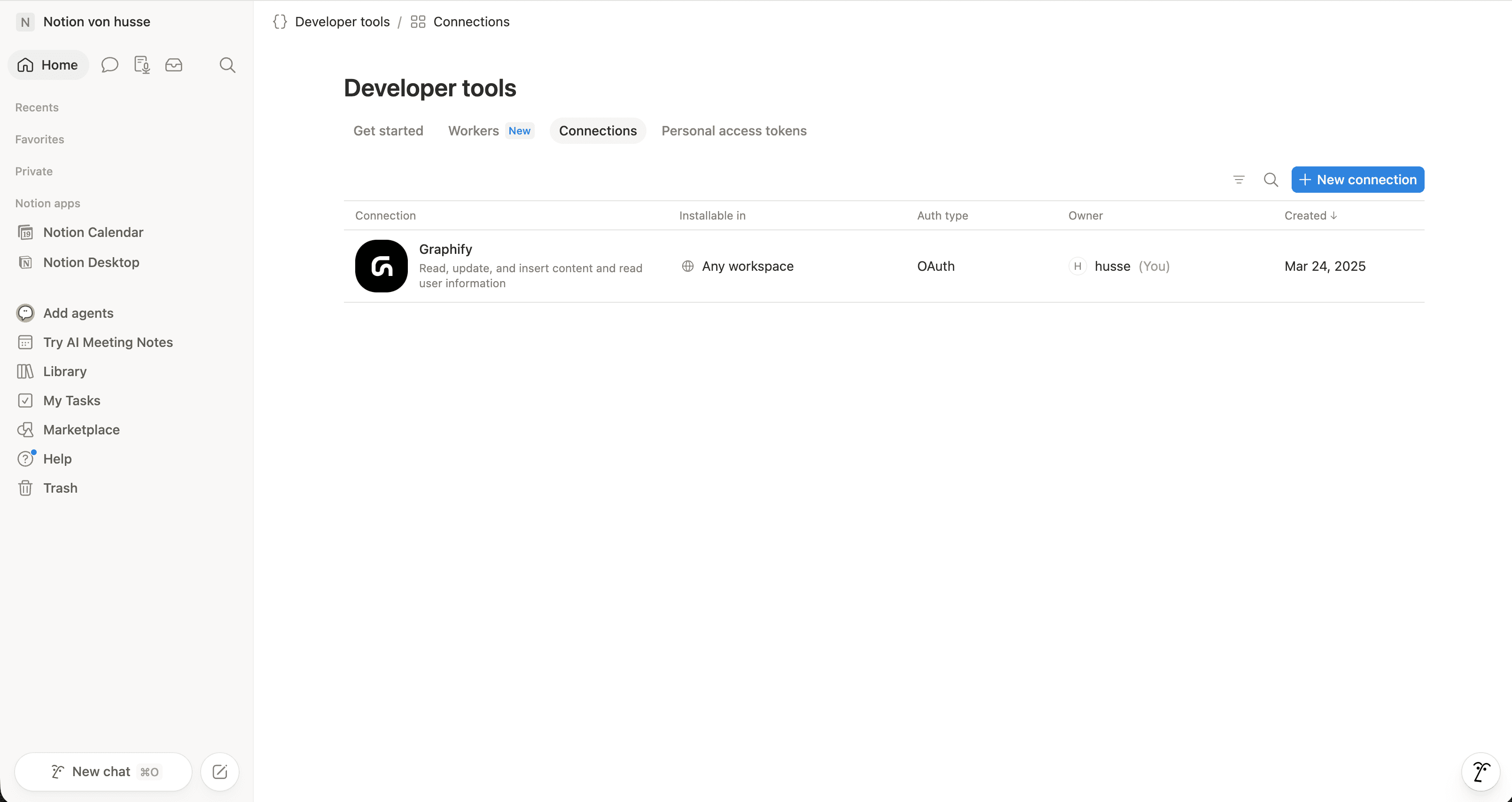
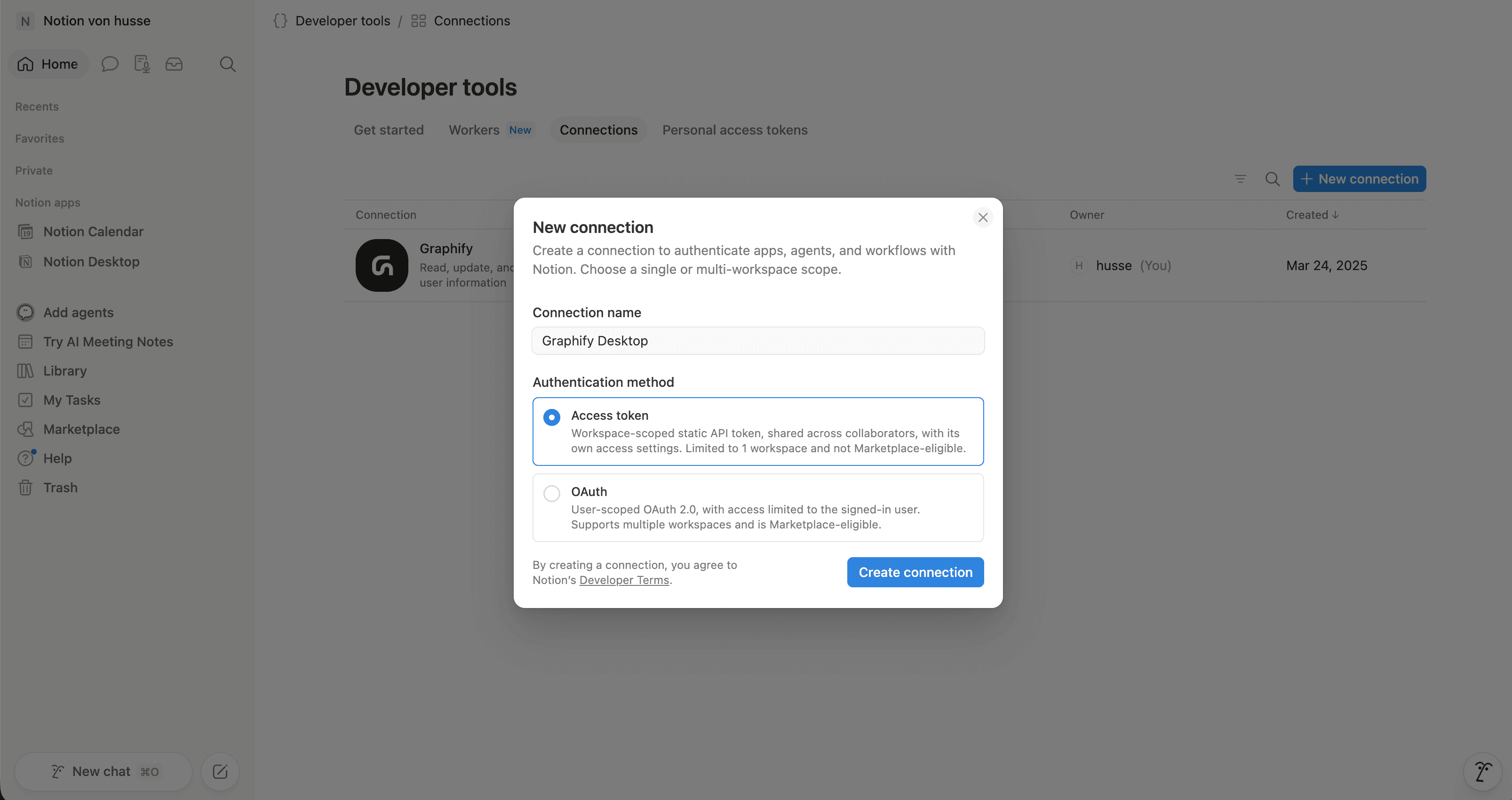
Click New Connection
Give it a name, like “Graphify Desktop” works. Leave the type as Access token.
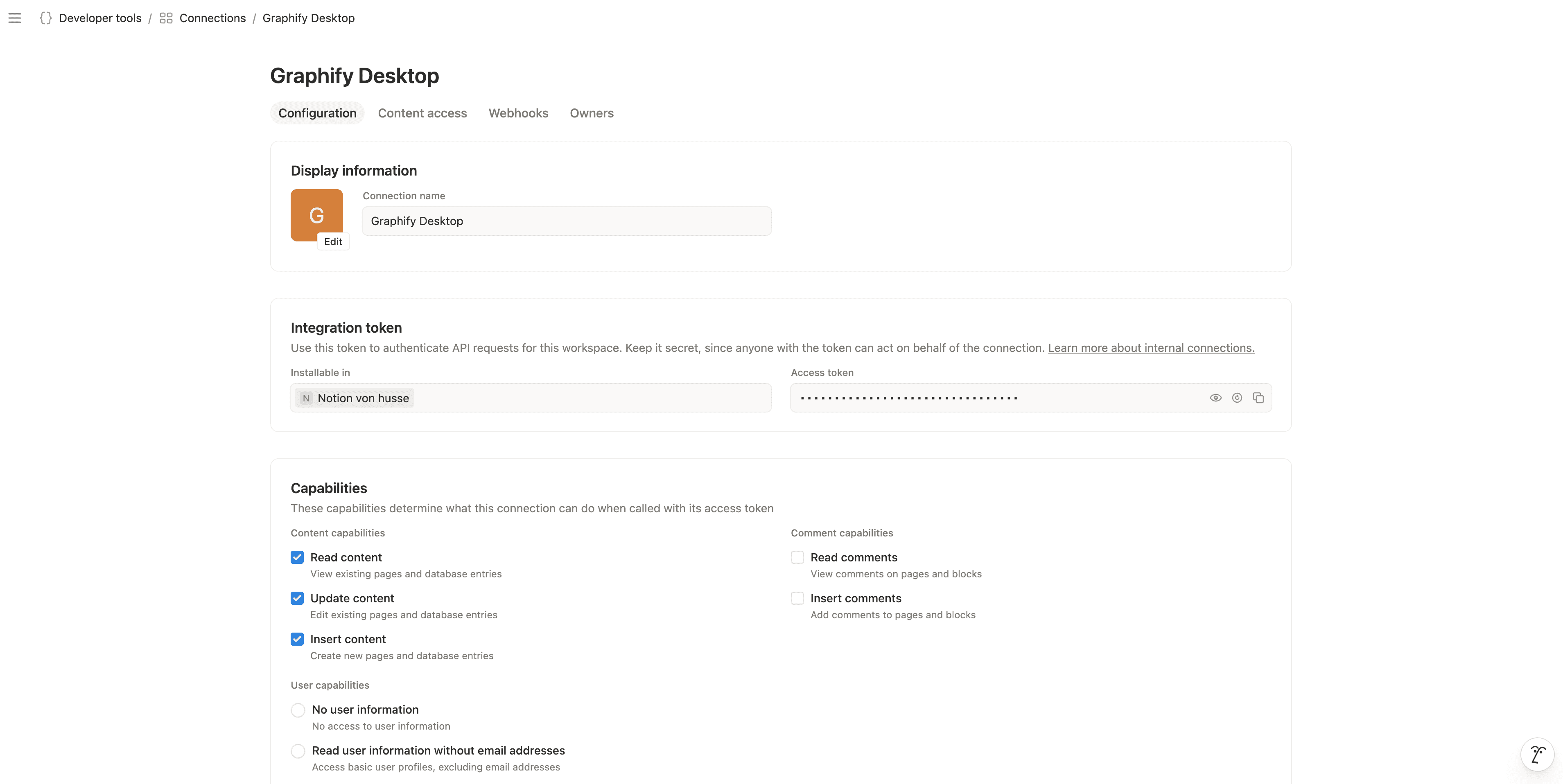
Copy the Access Token
It starts with ntn_. Older tokens start with secret_ — both work.
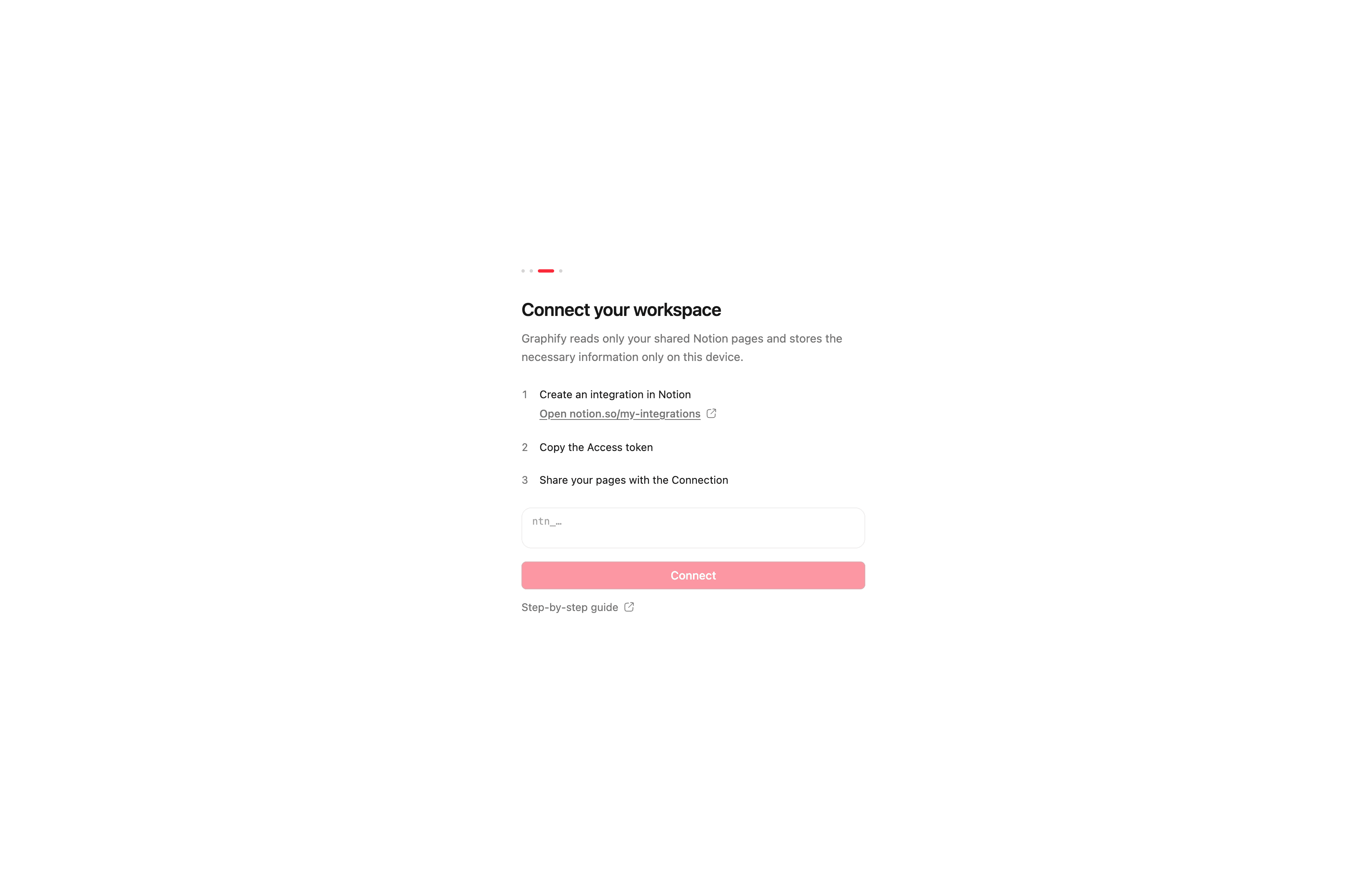
Paste it into Graphify
Open Graphify, paste the token into Connect your workspace, and click Connect.
If the token is still on your clipboard, Graphify offers it to you, accept and you're done.
Share your pages with the integration
This is the step almost everyone forgets, and without it the graph stays empty.
A new integration starts with access to nothing. You have to hand it pages:
Open the top-level page you want mapped in Notion
Go as high up as you can. Everything underneath is included automatically.
Click ••• in the top right
Choose Connections, then your integration
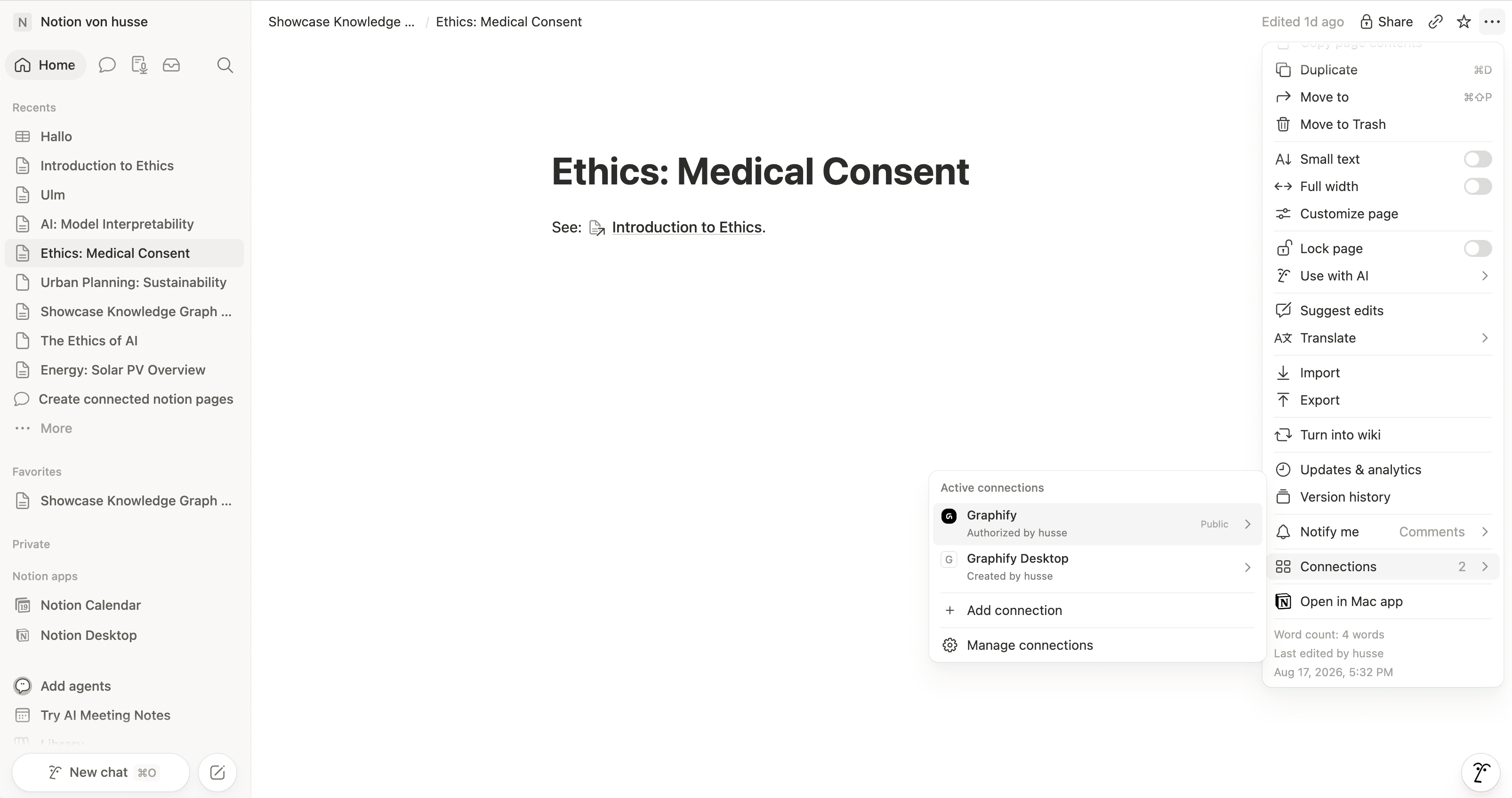
Repeat for any other top-level area you want in the graph. You don't need to do this for subpages or for entries in a database you've already shared.
Where the token is kept
It is kept on your machine, encrypted by your operating system (the macOS Keychain, or Windows DPAPI). It doesn't leave the device and there's no Graphify server holding a copy.
The permissions Notion grants are read-only. Graphify sees only what you shared, and can't change any of it.
Revoking access
Two ways, and they do different things:
- In Graphify: Settings → Notion → Disconnect. Graphify stops using the token.
- In Notion: delete the integration at notion.so/my-integrations. The token stops working everywhere, immediately.
If the token isn't accepted
Check you copied the Internal Integration Token and not the integration's ID or secret from somewhere else on the page. It begins with ntn_ or secret_.
If the token is accepted but Graphify says No pages shared yet, the token is fine. Go back and do the Connections step above.
Next
Still stuck? Tell us what you were doing when it went wrong.
hello@getgraphify.com